> ## Documentation Index
> Fetch the complete documentation index at: https://docs.visioncam.net/llms.txt
> Use this file to discover all available pages before exploring further.

# Create a VisionCam Playbill account

> Sign up for VisionCam Playbill in seconds using your Google account or an email address and password to start building digital programs.

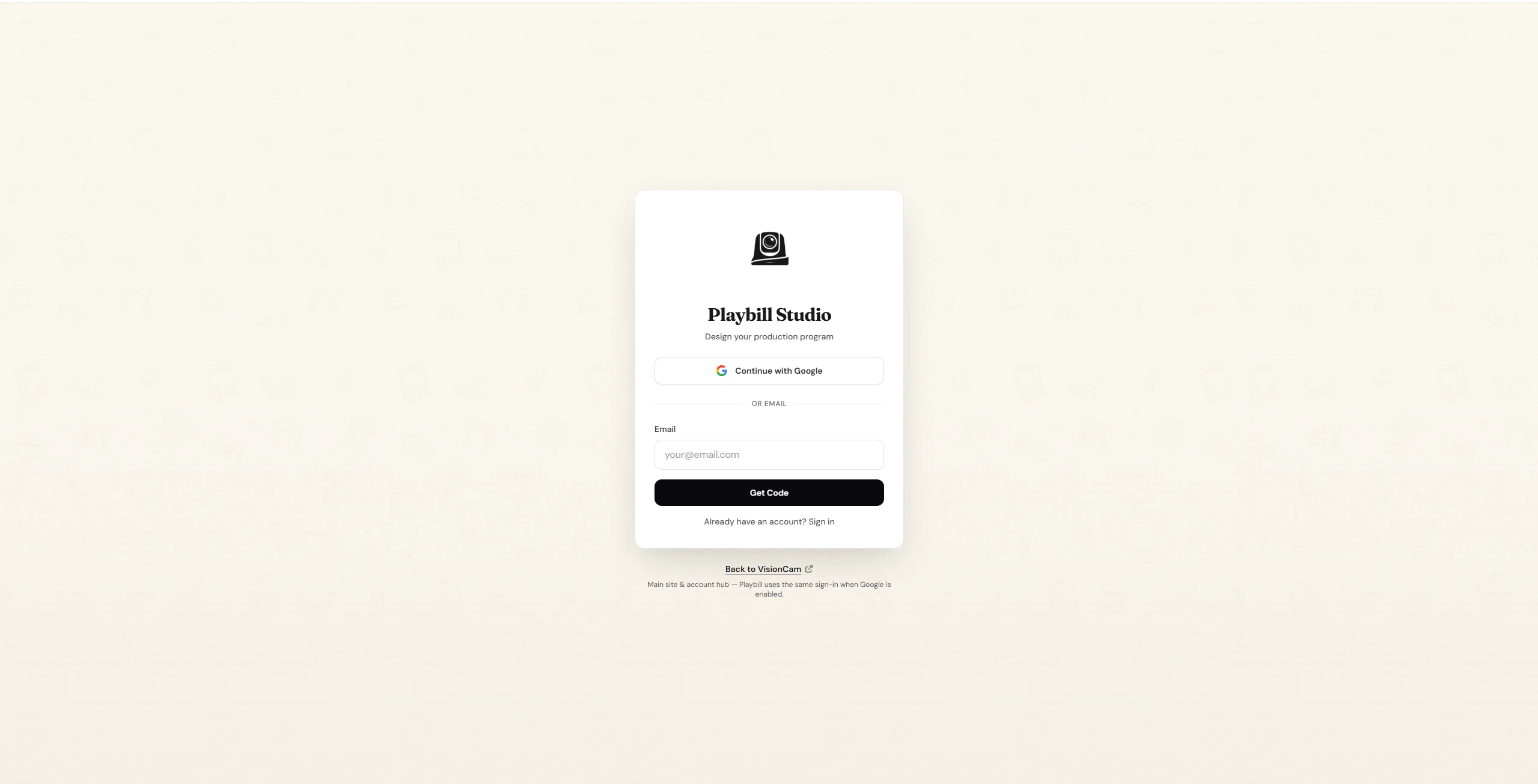
Head over to [VisionCam Playbill](https://playbill.visioncam.xyz) to get started.
<Frame>
  <img src="https://mintcdn.com/visioncam/gai8rDCSTL8Pj7bR/images/Screenshot-2026-05-16-131244.png?fit=max&auto=format&n=gai8rDCSTL8Pj7bR&q=85&s=b392b07dad3d9b34440af1ab6ac7a156" alt="Playbill login screen" width="2559" height="1305" data-path="images/Screenshot-2026-05-16-131244.png" />
</Frame>

You can create an account in two ways — with **Google** or with **Email**.

***

## Sign Up with Google

<Steps>
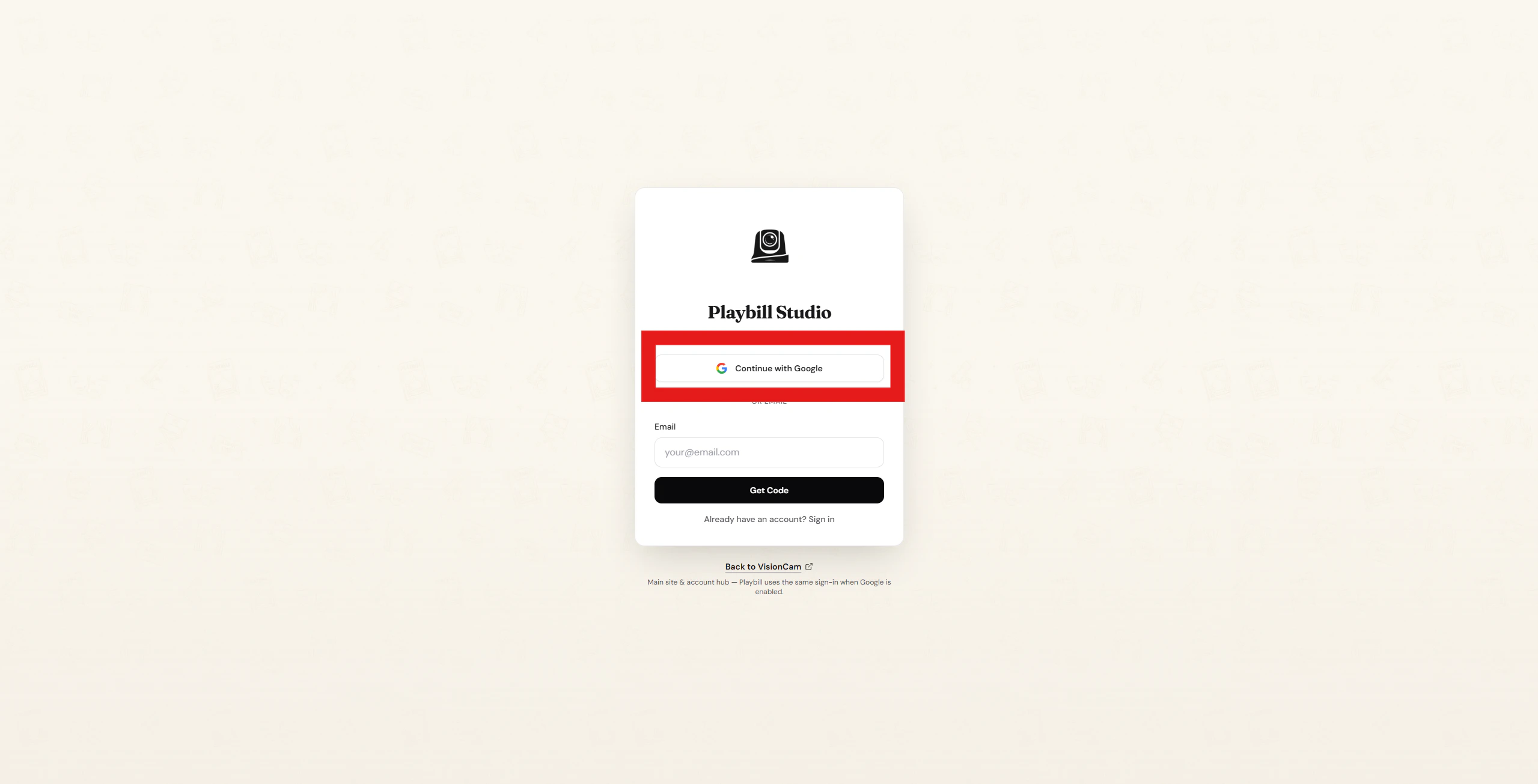
  <Step title="Click 'Continue With Google'">
    On the login page, click the **Continue With Google** button.
    <Frame>
      <img src="https://mintcdn.com/visioncam/gai8rDCSTL8Pj7bR/images/Screenshot-2026-05-16-131433.png?fit=max&auto=format&n=gai8rDCSTL8Pj7bR&q=85&s=a28f7da651dff4fc6e9f496de9c64c80" alt="Continue with Google button" width="2559" height="1305" data-path="images/Screenshot-2026-05-16-131433.png" />
    </Frame>
  </Step>

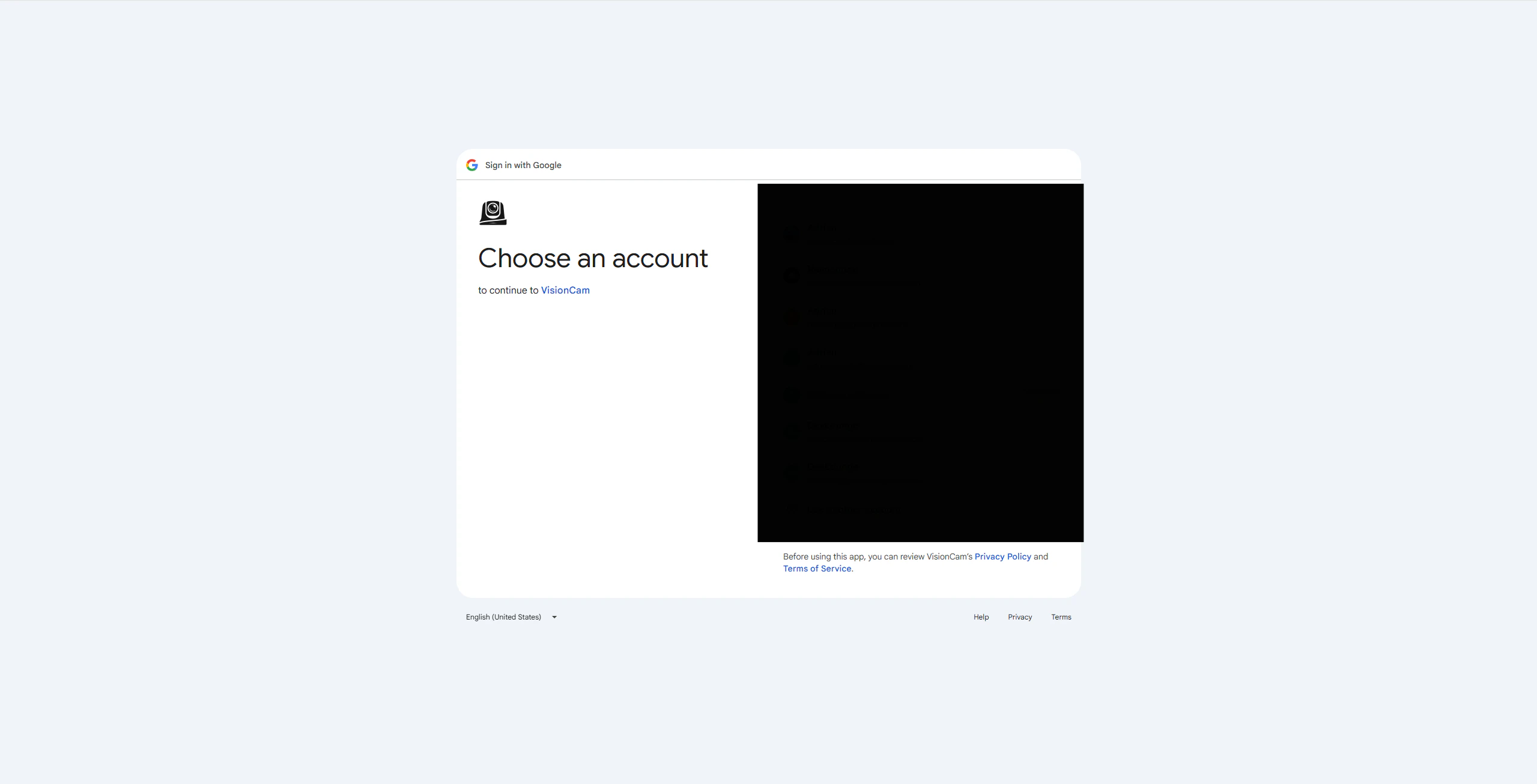
  <Step title="Select your Google account">
    You'll be redirected to Google. Select the account you'd like to use.
    <Frame>
      <img src="https://mintcdn.com/visioncam/gai8rDCSTL8Pj7bR/images/Screenshot-2026-05-16-131919.png?fit=max&auto=format&n=gai8rDCSTL8Pj7bR&q=85&s=77009aca1eaebddcaa802b2e83f05576" alt="Google account selection" width="2559" height="1306" data-path="images/Screenshot-2026-05-16-131919.png" />
    </Frame>
  </Step>

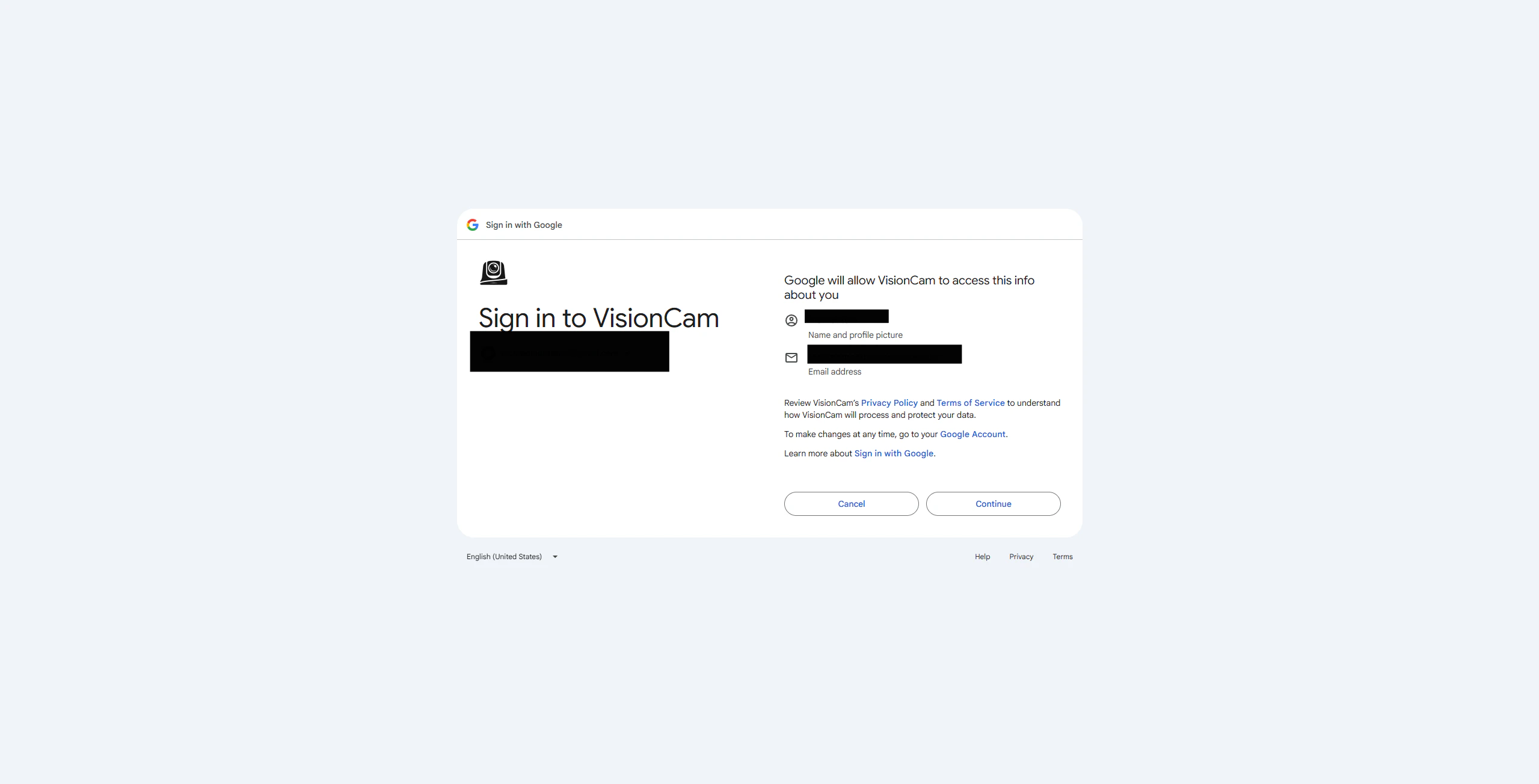
  <Step title="Confirm and continue">
    Click **Continue** to finish creating your account.
    <Frame>
      <img src="https://mintcdn.com/visioncam/gai8rDCSTL8Pj7bR/images/Screenshot-2026-05-16-132141.png?fit=max&auto=format&n=gai8rDCSTL8Pj7bR&q=85&s=192189c48639fe9df9d49e8a4c5a5778" alt="Confirm account creation" width="2559" height="1304" data-path="images/Screenshot-2026-05-16-132141.png" />
    </Frame>
  </Step>
</Steps>

<Check>
  You're all set! Your account has been created.
</Check>

***

## Sign Up with Email

<Steps>
  <Step title="Enter your email">
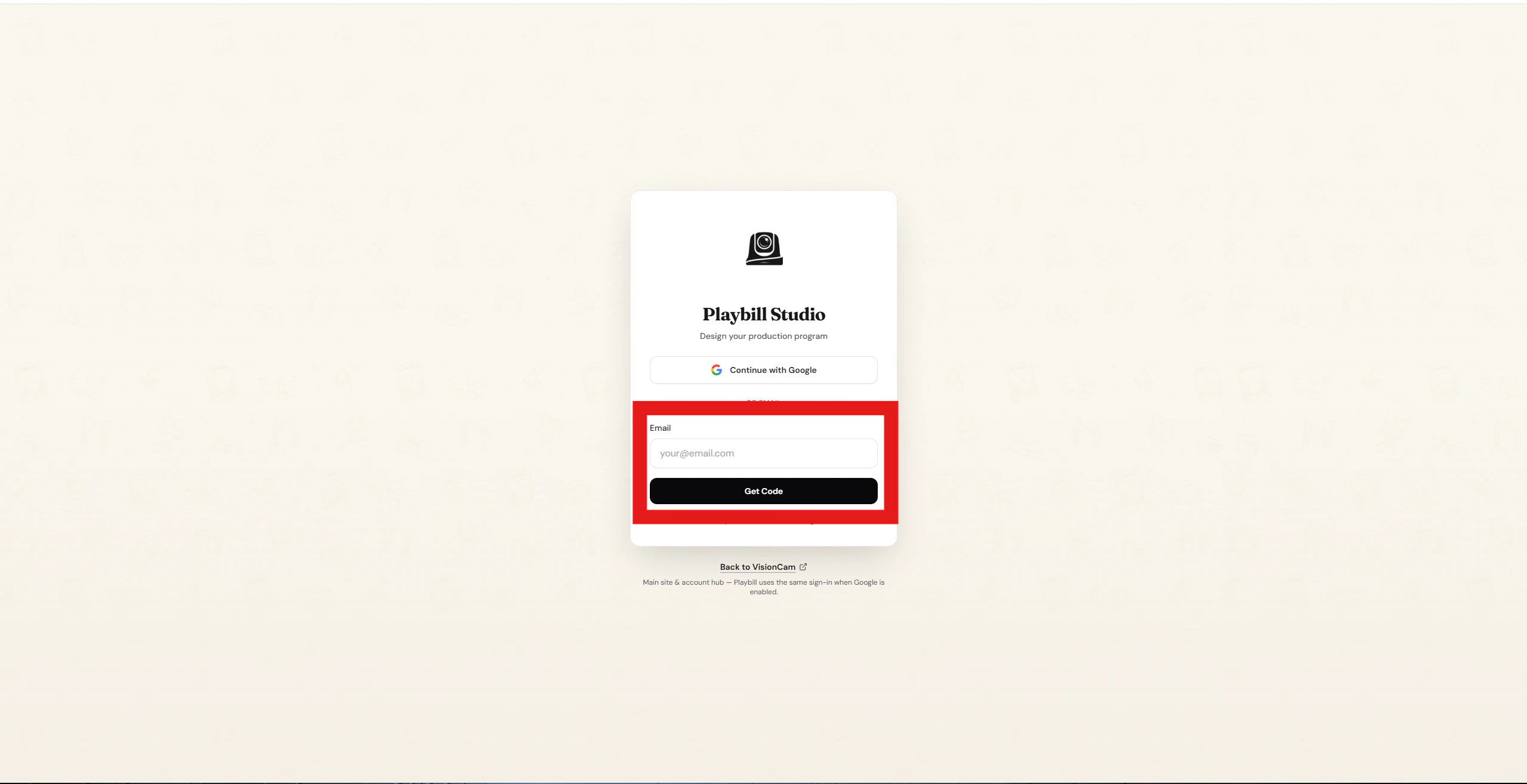
    Type your email address into the **Email** field and click **Get Code**.
    <Frame>
      <img src="https://mintcdn.com/visioncam/gai8rDCSTL8Pj7bR/images/Screenshot-2026-05-16-132557.png?fit=max&auto=format&n=gai8rDCSTL8Pj7bR&q=85&s=48d636f3bea318cf7677e5371be7065c" alt="Enter email address" width="2559" height="1314" data-path="images/Screenshot-2026-05-16-132557.png" />
    </Frame>
  </Step>

  <Step title="Check your inbox">
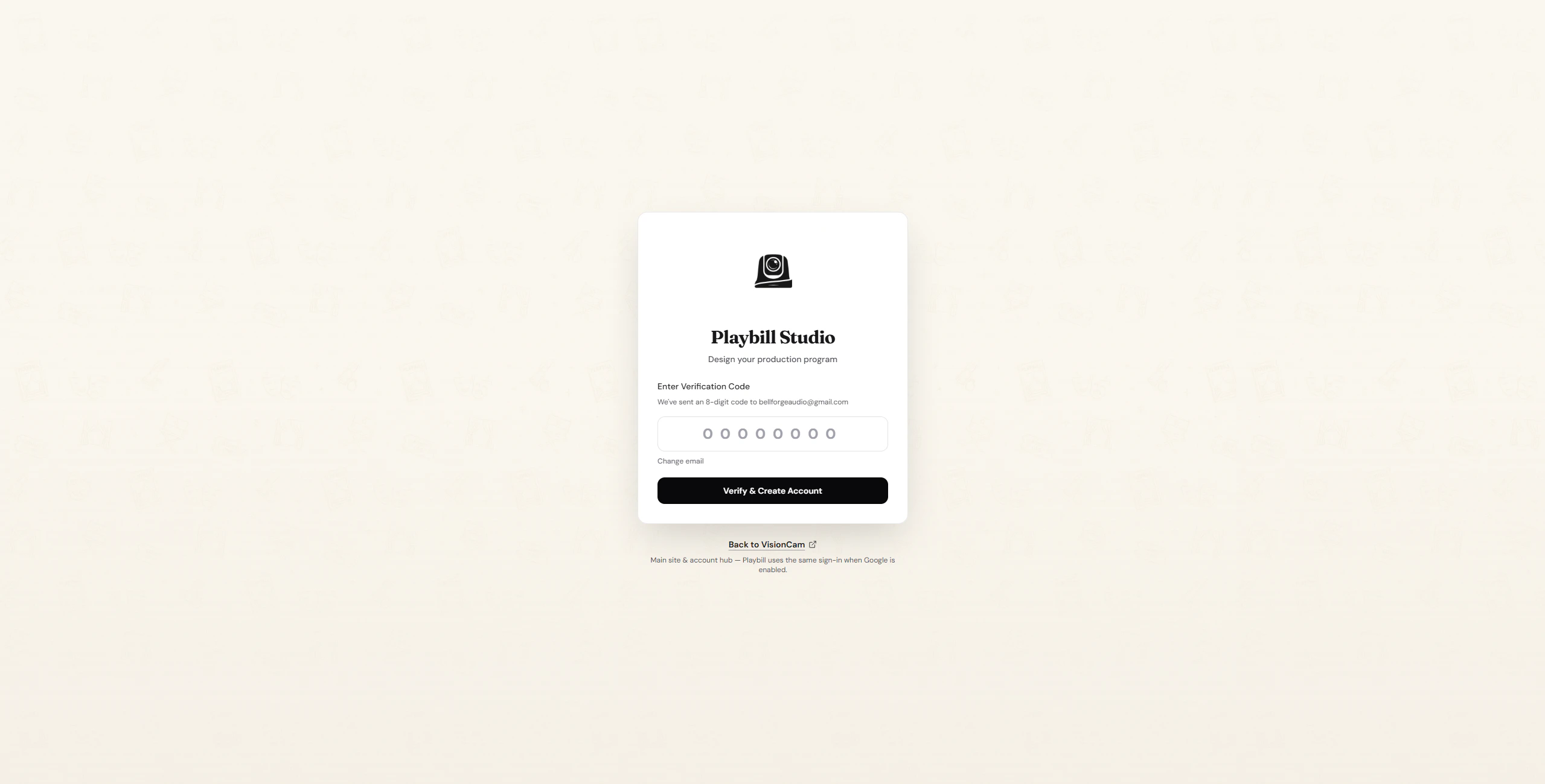
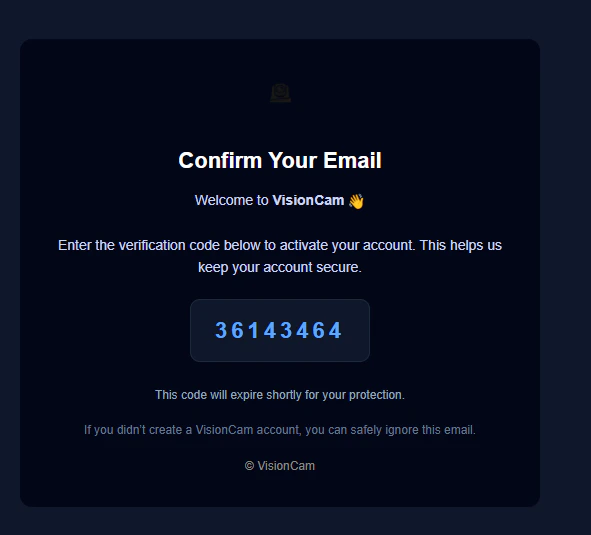
    A verification code will be sent to your email. Enter the code on the next page and click **Verify & Create Account**.
    <Frame>
      <img src="https://mintcdn.com/visioncam/gai8rDCSTL8Pj7bR/images/Screenshot-2026-05-16-132829.png?fit=max&auto=format&n=gai8rDCSTL8Pj7bR&q=85&s=76458cb222ea185dfecb9fdce19a171c" alt="Enter verification code" width="2559" height="1299" data-path="images/Screenshot-2026-05-16-132829.png" />
    </Frame>
  </Step>

  <Step title="Account confirmed">
    <Frame>
      <img src="https://mintcdn.com/visioncam/gai8rDCSTL8Pj7bR/images/Screenshot-2026-05-16-133301.png?fit=max&auto=format&n=gai8rDCSTL8Pj7bR&q=85&s=b34a2fcaecdd9d08e2e7250edab45384" alt="Account created confirmation" width="591" height="535" data-path="images/Screenshot-2026-05-16-133301.png" />
    </Frame>
  </Step>
</Steps>

<Check>
  You're all set! Your account has been created.
</Check>
